
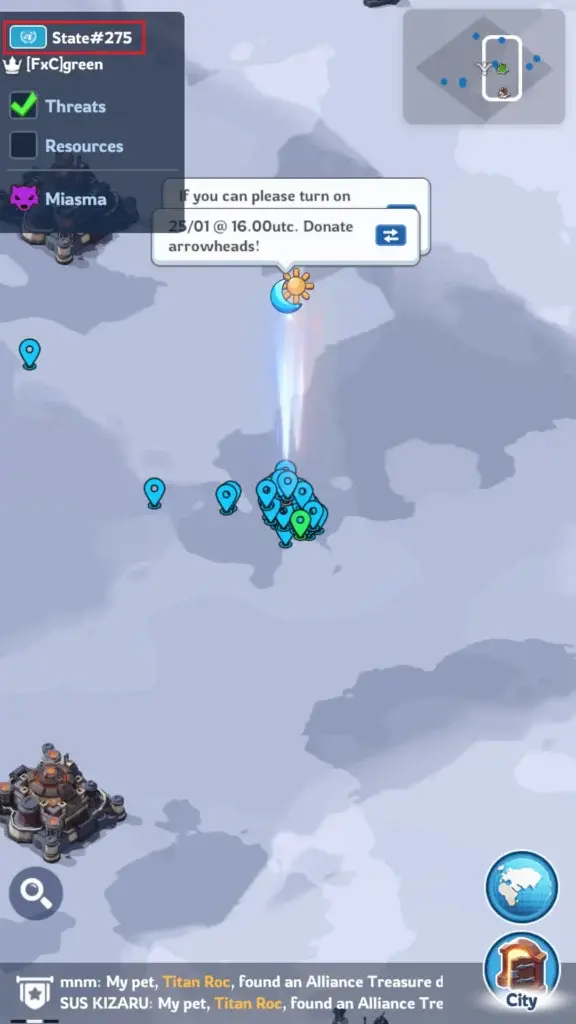
The Whiteout Survival state map shows the server where your character was created and the world-map area shared by players in that state. Your state number affects alliance membership, server progression, State of Power matchmaking, transfers, and where you can play with friends.
You can find your state number through your Chief Profile or by zooming out on the Whiteout Survival world map. Both methods take only a few seconds.
This guide explains how to check your state, understand the map interface, use coordinates, distinguish a teleport from a state transfer, and avoid common map-related mistakes.
Quick answer: Tap your Chief avatar in the upper-left corner and look for the state number in your profile details. You can also open the World Map, zoom out, and check the state information displayed in the map interface.
What Is the Whiteout Survival State Map?
In Whiteout Survival, a state is the server that hosts your character. Players in the same state share the main world map, compete for map objectives, join local alliances, and progress through a similar content timeline.
The terms state map and world map are often used interchangeably. However, they describe slightly different things:
- State: The server or player community assigned to your character.
- World Map: The playable map inside that state.
- State number: The numerical code used to identify the server.
- Coordinates: The X and Y position of a city, resource tile, facility, or other map location.
The world map contains player cities, alliance territory, resource tiles, facilities, fortresses, strongholds, event targets, and the Sunfire Castle. What you can see may depend on your zoom level, the age of your state, and the features currently unlocked.
How to Check Your State in Whiteout Survival
There are two reliable ways to find your state number. The profile method is usually the fastest, while the map method gives you more context about your server.
Method 1: Check Your Chief Profile
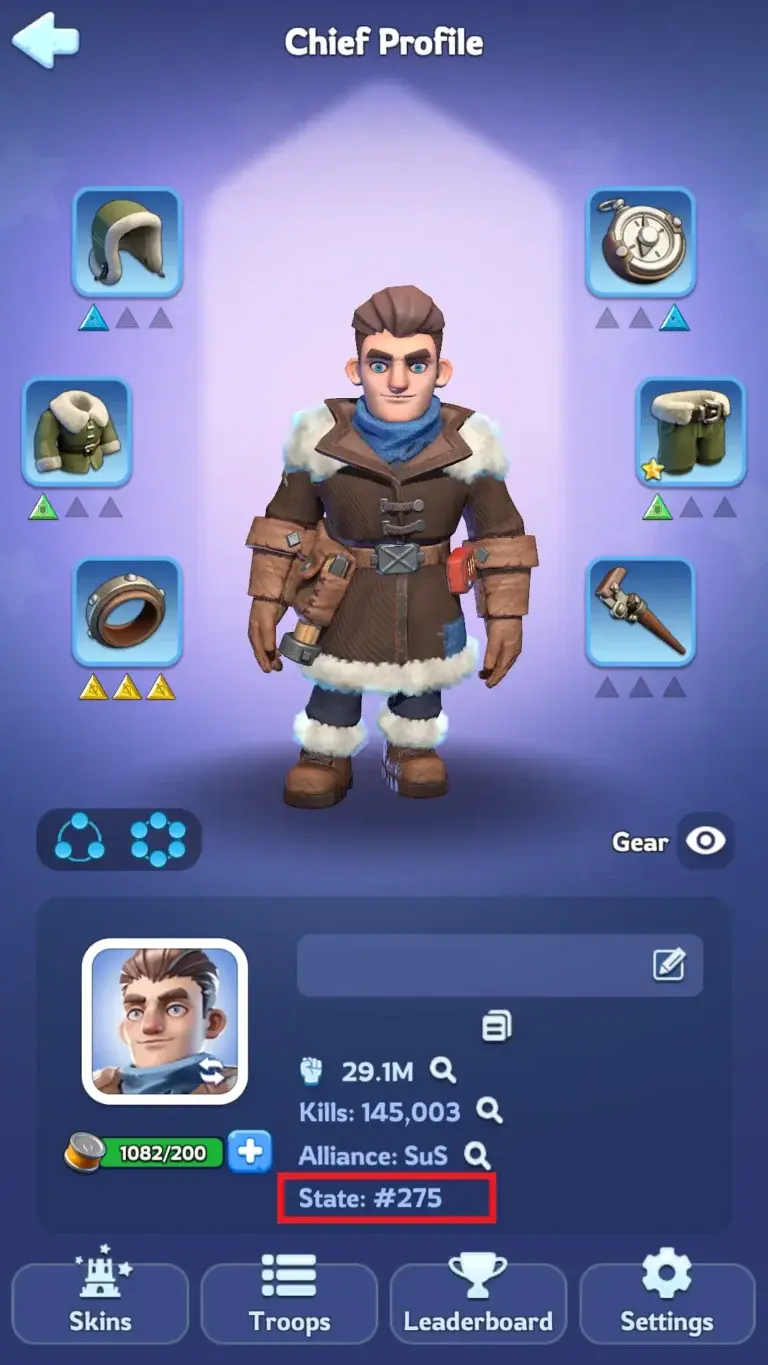
- Open Whiteout Survival and enter your city.
- Tap your Chief avatar in the upper-left corner.
- Review the information shown on your Chief Profile.
- Find the state number near your alliance and character details.
This method is useful when you need to send your state number to a friend, recruiter, alliance leader, or support representative.
Method 2: Use the Whiteout Survival World Map
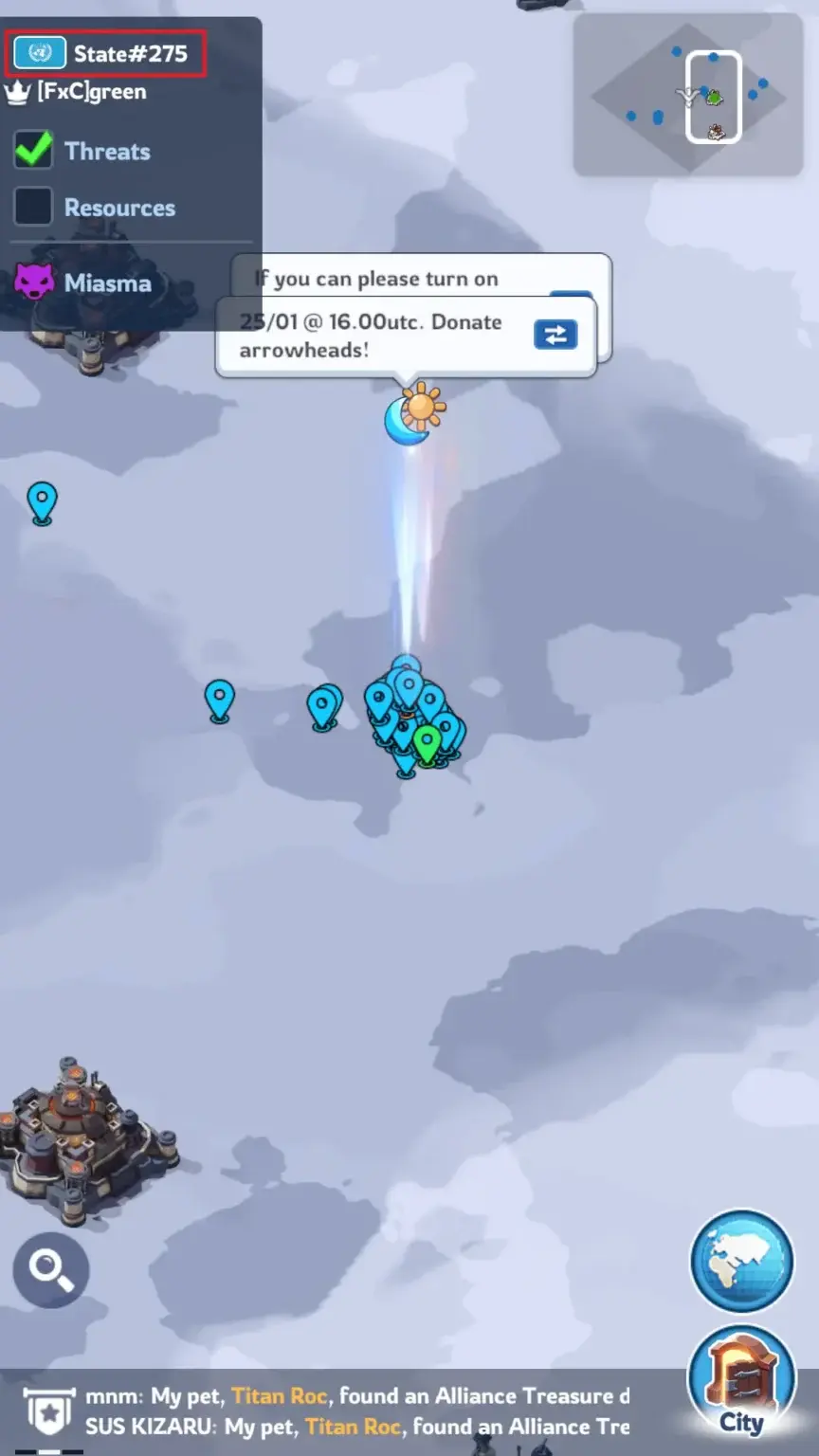
- Tap the World button in the lower-right corner.
- Zoom out until the wider map interface appears.
- Check the information displayed near the upper-left area of the map.
- Look for your state number and any available Sunfire Castle or ruling-alliance information.
Interface labels can move after game updates. If the state number is not immediately visible, change the zoom level or return to your Chief Profile.
How to Read the Whiteout Survival World Map
The state number is only one part of the map. Learning the other map elements will help you coordinate marches, find objectives, and avoid positioning mistakes.
| Map Element | What It Shows | Why It Matters |
|---|---|---|
| State number | The server assigned to your character | Identifies your player community and progression group |
| X and Y coordinates | The exact position of a target or location | Helps players share locations and coordinate marches |
| Alliance tags | Which alliance controls a city or structure | Helps identify allies, rivals, and occupied objectives |
| Alliance territory | The area connected through alliance buildings and banners | Affects access to facilities, resources, and strategic positions |
| Facilities and forts | Important structures available for alliance competition | Provides objectives and potential occupation benefits |
| Sunfire Castle | The central castle contested by eligible alliances | Connected to the state presidency and major state battles |
Use Different Zoom Levels
The map displays different information as you zoom in and out. A close view is useful for individual cities, resource tiles, and open spaces. A wider view makes alliance territory, facilities, and major structures easier to understand.
If a label is missing, adjust the zoom before assuming the location or structure is unavailable.
Check Coordinates Before Marching
Coordinates provide a more reliable reference than visual descriptions. Two areas of the map can look similar, especially when alliance cities are grouped closely together.
Before sending a long march, confirm the target’s coordinates and alliance tag. This reduces the risk of attacking the wrong city, reinforcing the wrong player, or teleporting to an inconvenient position.
Why Your Whiteout Survival State Number Matters
Alliance Membership and Daily Cooperation
Your regular alliance operates within a specific state. To join the same alliance and share the same everyday world map, you and your friends normally need characters in that state.
Players from different states may still encounter each other through supported cross-state systems. However, that does not place them on the same permanent state map.
State Age and Content Progression
Whiteout Survival states do not all unlock content at the same time. State age can influence available hero generations, events, buildings, pets, equipment systems, and other progression features.
As a result, a guide written for an older state may mention systems that a newer state has not unlocked yet. Always compare advice with the features currently visible on your account.
State of Power and Cross-State Events
State of Power, commonly called SvS, matches states against each other. Your state number helps alliance leaders, recruiters, and players identify the correct opponent and avoid mixing information from different matchups.
Event stages, objectives, and rewards can change. Check the current in-game event panel before spending saved resources or committing troops.
Recruitment and Playing With Friends
Sharing only your Chief name may not be enough because similar names can exist elsewhere. When recruiting or joining friends, provide your state number, Chief name, and alliance tag.
This is especially important before creating a new character. Confirm the destination state first so you do not invest time in a character on the wrong server.
Teleporting Is Not the Same as Changing State
This is one of the most common sources of confusion for new players.
- Teleporting moves your city to another position on the world map inside your current state.
- State Transfer moves an eligible character from one state to another during the designated transfer system.
A Random Teleporter, Alliance Teleporter, Territory Teleporter, or Advanced Teleporter does not permanently change your server number. These items only reposition your city within the map allowed by that teleporter.
Common mistake: Do not purchase or save ordinary teleport items expecting them to move your character to a friend’s state. A cross-state move requires the State Transfer feature and its current eligibility rules.
How State Transfer Works
State Transfer is not permanently available. It opens during designated transfer events, and participating states are divided into compatible groups.
Requirements can vary according to state age, progression, transfer grouping, power limits, and the current event rules. Typical checks may include:
- Your Furnace level and account progression.
- The transfer power cap of the destination state.
- Your current alliance and combat status.
- Your previous transfer history.
- The number of characters already created in the destination state.
- Compatibility between the progression timelines of both states.
- The required number of Transfer Passes.
Some transfer phases may require an invitation, while another phase may allow eligible players to claim a limited open slot.
Because transfer groups and requirements can change, use the active State Transfer event page as the final authority. Do not rely only on an old screenshot, social media post, or previous transfer schedule.
Can a State Merger Change Your State Number?
Yes. State Merger is a separate system controlled by the game. When selected states are combined, one state code remains for the merged server.
This can change the state number displayed on your profile even though you did not manually use State Transfer. Cities may also be repositioned, alliance territory may need to be rebuilt, and some state or alliance records may be adjusted.
After a merger: Recheck your profile, update recruitment messages, verify saved state information, and confirm the new map situation before major alliance activities.
What Is a Whiteout Survival Map Scanner?
The phrase Whiteout Survival map scanner usually refers to a third-party community tool rather than a standard in-game feature.
Community tools may help alliance leaders record facilities, model territory layouts, organize map data, or analyze screenshots. Some are simple planning maps, while others use automated image recognition to collect visible information.
These tools are different from the official Whiteout Survival world map. Their accuracy, security, and maintenance can vary.
- Do not enter your game password into an unknown map tool.
- Do not share account-binding or recovery information.
- Check whether the tool is actively maintained.
- Verify important locations inside the game before making decisions.
- Avoid automation that may conflict with the game’s current rules.
For most players, the in-game map, coordinates, alliance communication, and map filters provide enough information for daily play.
Practical Ways to Use the WOS State Map
Move Near Your Alliance
Being near active alliance members can reduce march times for rallies, reinforcements, Bear Hunt participation, and coordinated defense.
Before teleporting, make sure the destination is open and follows any layout instructions provided by your alliance leadership.
Plan Around Important Structures
Alliance officers can use the wider map view to plan routes toward facilities, fortresses, strongholds, resource locations, and the Sunfire Castle.
A direct route is not always the most useful route. Consider competing alliances, banner requirements, available space, and the objectives your alliance can realistically defend.
When reporting an enemy city, open location, facility, or gathering area, share the exact coordinates instead of saying that it is “near the castle” or “above the alliance.”
Clear coordinates make instructions easier to follow and reduce mistakes during time-sensitive events.
Check the State Before Comparing Established Accounts
Players comparing established progression options should verify the state number, Furnace level, heroes, Chief Gear, transfer eligibility, account binding, and security details. A listing presented as a wos account for sale should only be considered when its state and progression details match the player’s intended destination and gameplay goals.
Common State Map Mistakes
- Confusing a state with an alliance: A state contains many alliances. Your alliance tag is not your state number.
- Assuming a teleport changes servers: Regular teleport items only reposition your city inside the current state.
- Joining friends without confirming the state: Check the exact state number before creating or developing a new character.
- Using outdated transfer requirements: Power caps, groups, invitations, and eligibility rules can differ between events.
- Ignoring state age: Guides from older states may include heroes or systems that your state has not unlocked.
- Trusting an unverified map scanner: Confirm important information in the game and protect your account credentials.
- Forgetting to check after a merger: A merger can change the surviving state code and reorganize the world map.
FAQs
How do I find my state number in Whiteout Survival?
Tap your Chief avatar in the upper-left corner and review your profile details. Your state number appears near your character and alliance information.
You can also open the World Map, zoom out, and check the state information shown in the map interface.
Are a state and a server the same thing?
Yes. Players commonly use state and server to describe the same character environment in Whiteout Survival.
The world map is the playable area shared by characters in that state.
Can I play with friends in another state?
You may encounter players from other states through supported cross-state events and communication features. However, regular alliance membership and everyday map cooperation normally require characters in the same state.
To join a friend’s permanent state community, you may need to create a new character there or qualify for a future State Transfer event.
Can I change my state with an Advanced Teleporter?
No. An Advanced Teleporter lets you select a new valid position within your current state. It does not move the character to another server.
Changing states requires the separate State Transfer system.
Can I view another state’s world map?
The normal World Map opens to your current state. Certain cross-state events or transfer-related interfaces may let you inspect opponent information or another eligible state.
The available view depends on the active feature and the current game interface.
Does every Whiteout Survival state have the same map?
States generally use the same core world-map structure, but player cities, alliance territories, occupied structures, available objectives, and political control differ.
State age and unlocked content can also affect what players see and can access.
Is there an official Whiteout Survival map scanner?
The standard game provides an interactive world map, but tools described as map scanners are generally community-created utilities.
Treat third-party tools carefully, verify their information in-game, and never provide unknown services with sensitive account credentials.
Can a State Merger change my server number?
Yes. When states are combined, one state code remains for the merged server. Your displayed state number may therefore change without a manual State Transfer.
Check your profile and current in-game merger information after the process is complete.
Conclusion
The Whiteout Survival state map helps you identify your server, locate important objectives, coordinate with your alliance, and understand where your character fits within the game’s wider progression system.
The fastest way to check your state is through your Chief Profile. The world-map method is more useful when you also want to review coordinates, alliance territory, facilities, or Sunfire Castle information.
Remember that teleporting only moves your city within its current state. State Transfer and State Merger are separate systems with their own rules, schedules, and eligibility requirements. Always confirm current details through the relevant in-game panel.
For more map advice, event preparation, alliance strategy, and progression tips, explore our collection of Whiteout Survival guides.