

You can play Rise of Kingdoms on PC without using an unofficial Android emulator. Windows players have two straightforward options: Lilith Games’ official Rise of Kingdoms PC client or Google Play Games on PC. Apple-silicon Mac users can also install the game through Apple’s App Store.
For most Windows players, the direct Lilith PC client is the simplest choice. Google Play Games is a good alternative if your PC meets Google’s virtualization and hardware requirements. Before switching from mobile, make sure your existing governor is linked to a login method you can access.
Can You Play Rise of Kingdoms on PC?
Yes. Rise of Kingdoms has an official Windows PC version, and the game is also currently available through Google Play Games on PC.
Your main options are:
- Official Rise of Kingdoms Windows client: Best starting point for most Windows players.
- Google Play Games on PC: Official Google option for supported Windows computers.
- Mac App Store: Available on compatible Apple-silicon Macs.
- Third-party Android emulator: Optional when you have a specific compatibility or accessibility reason to use one.
Start with an official route. Third-party emulators add another software layer and have their own privacy policies, system requirements, update schedules, and compatibility issues.
Best Way to Play Rise of Kingdoms on PC
Scroll sideways to view the full table.
| Method | Platform | Best For | Main Consideration |
|---|---|---|---|
| Official Rise of Kingdoms client | Windows | Most PC players | Download from the official Rise of Kingdoms website |
| Google Play Games | Windows | Players who prefer Google’s PC platform | Requires supported hardware, an SSD, and virtualization |
| App Store version | Apple-silicon Mac | M1-or-newer Mac users | Requires macOS 11 or later according to the current App Store listing |
| Android emulator | Varies | Special compatibility or accessibility needs | Third-party software; support and performance vary |
How to Download the Official Rise of Kingdoms PC Client
The direct Lilith Games version is the first option Windows players should try. It uses a launcher that handles game installation and subsequent updates.
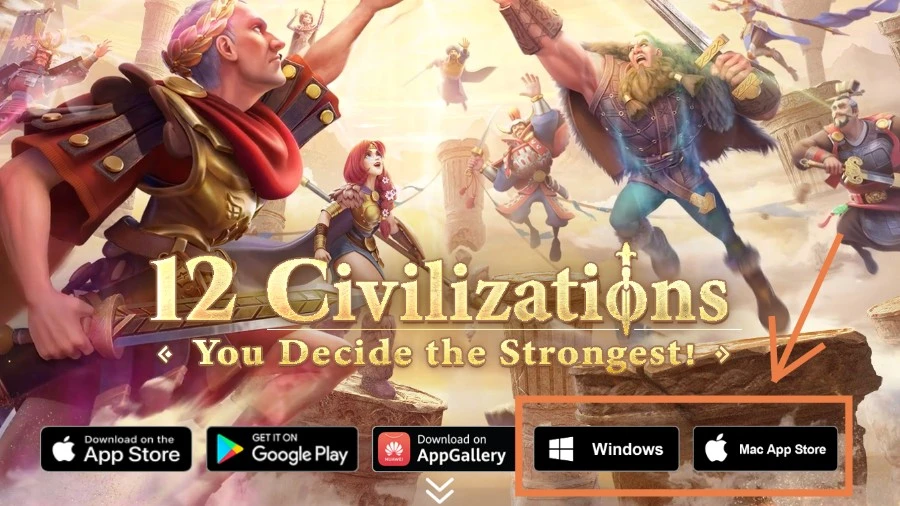

- Open the official Rise of Kingdoms website.
- Select the Windows or PC download option.
- Save the official installer to your computer.
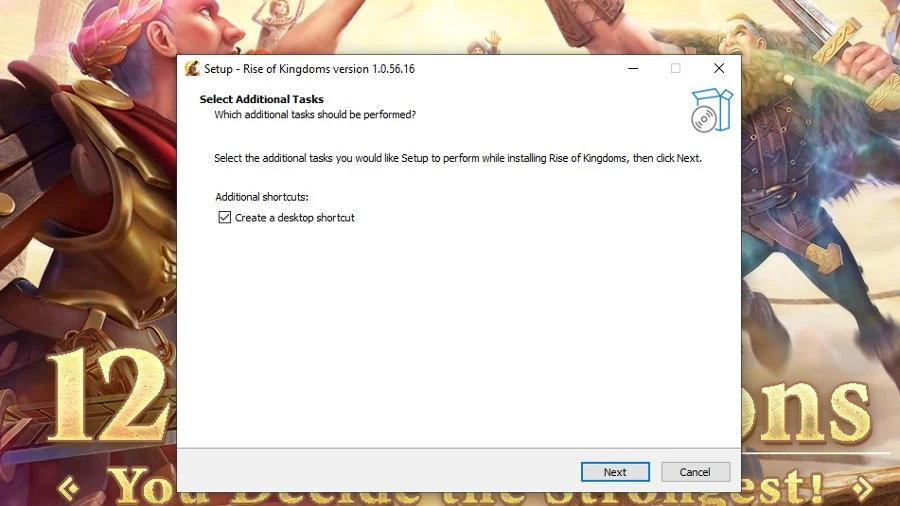
- Open the installer after the download finishes.
- Check the Windows security prompt and publisher information before approving installation.
- Select the installation location if prompted.
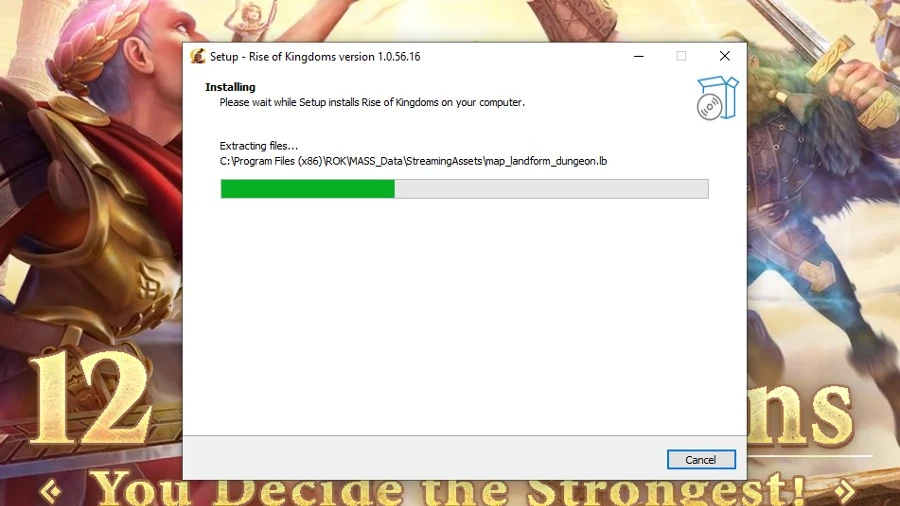
- Allow the launcher to download the current game files.
- Launch Rise of Kingdoms.
- Use the login option connected to your existing governor.
- Confirm the correct governor and kingdom before continuing to play.
How to Install Rise of Kingdoms With Google Play Games
Rise of Kingdoms: Lost Crusade is currently listed as playable on Windows through Google Play Games. This gives players another official route without installing a conventional third-party Android emulator.
- Download Google Play Games from Google.
- Install the application on your Windows PC.
- Restart Windows if the installer requests it.
- Enable hardware virtualization if Google Play Games reports that it is disabled.
- Sign in to Google Play Games.
- Search for Rise of Kingdoms: Lost Crusade.
- Select Install.
- Wait for the game files to download.
- Launch Rise of Kingdoms.
- Use your linked in-game account to access the correct governor.
You can check the current listing on the Rise of Kingdoms Google Play Games page.
Do not assume that signing into Google Play Games alone will always select the correct Rise of Kingdoms governor. Account access ultimately depends on how your game profile is linked, so verify the profile after launching the game.
Rise of Kingdoms PC Requirements
The requirements depend on how you install the game. Google publishes a specific minimum configuration for Google Play Games, while Lilith’s direct PC client is separate and may have different requirements.
Google Play Games Minimum Requirements
Scroll sideways to view the full table.
| Component | Current Google Minimum |
|---|---|
| Operating System | Windows 10 version 2004 |
| Storage | SSD with 10 GB available space |
| Memory | 8 GB RAM |
| Graphics | Intel UHD Graphics 630 or comparable |
| Processor | 4 physical CPU cores |
| Windows Permissions | Administrator account |
| Virtualization | Hardware virtualization enabled |
Official Lilith PC Client Requirements
Do not reuse old articles that present figures such as Windows 7, 2 GB RAM, or a small fixed storage requirement as guaranteed current minimums. The direct Lilith client is separate from Google Play Games, and its compatibility can change as the launcher is updated.
For the safest approach, use a currently supported version of Windows, keep enough free storage for future patches, and update your graphics driver before troubleshooting performance problems.
Should You Use Windows 10 or Windows 11?
Google Play Games still lists Windows 10 version 2004 as its minimum operating-system requirement. That tells you the software may run on a qualifying Windows 10 system; it does not mean Windows 10 remains the best long-term operating-system choice.
Microsoft ended normal Windows 10 support on October 14, 2025. Windows 10 computers continue to function, but standard consumer installations no longer receive normal free security updates unless they are covered by an eligible Extended Security Updates option.
If your hardware supports Windows 11, use it for a currently supported Windows environment. If you remain on Windows 10, review Microsoft’s current support and ESU options rather than assuming the operating system is still fully supported.
How to Use Your Mobile Rise of Kingdoms Account on PC
Link your existing governor before switching devices. This is more important than the installation method itself because an unlinked mobile profile can be difficult to recover if you lose access to the original device.
- Open Rise of Kingdoms on the device that currently contains your governor.
- Open the account settings.
- Confirm that the governor is linked to a login method you can still access.
- Record your governor name, governor ID, and kingdom number.
- Install the PC version you want to use.
- Choose the same supported account-login method where applicable.
- Check the governor shown after login.
- Do not make purchases or continue progression until you have confirmed that it is the correct account.

Lilith’s PC documentation states that an existing character can be used on mobile and PC, although the same character should not be actively used on both platforms at the same time.
Rise of Kingdoms PC Controls
One of the main advantages of the official PC client is its desktop-focused control scheme. Lilith has continued updating the PC interface and supports configurable keyboard shortcuts.
Depending on the current client version and control layout, PC features can include:
- Mouse-based map movement and selection
- Mouse-wheel map zoom
- Keyboard shortcuts for frequently used commands
- Configurable shortcut key bindings
- Windowed and fullscreen play
- More convenient access to chat during battlefield movement
Check the current shortcut settings inside the client rather than relying on an old static keyboard list. Lilith has changed and expanded PC controls through updates.
Advantages of Playing Rise of Kingdoms on PC
- Larger battlefield view: Easier to follow marches, cities, passes, flags, and objectives.
- Mouse control: More comfortable target selection and map navigation during long sessions.
- Keyboard shortcuts: Faster access to supported actions.
- Better multitasking: Keep Discord, guides, spreadsheets, or alliance communication beside the game.
- No phone battery drain: Long KvK sessions do not continuously heat or discharge your phone.
- Flexible window sizes: The official Windows client supports desktop-oriented display options.
PC does not automatically remove lag. Large KvK fights can still be affected by server load, internet latency, graphics settings, and the number of active marches on screen.
Can You Play Rise of Kingdoms on Mac?
Yes, on supported Apple-silicon Macs. The current Apple App Store listing says Rise of Kingdoms requires macOS 11.0 or later and a Mac with an Apple M1 chip or later.
Mac users can:
- Open the App Store on a compatible Mac.
- Search for Rise of Kingdoms.
- Confirm the developer is Lilith Games.
- Install the game through the App Store.
- Use the appropriate linked account to access the correct governor.
This replaces older advice suggesting that Mac users must rely on an Android emulator. Intel Macs do not meet the current M1-or-newer compatibility requirement shown on Apple’s listing.
Do You Need BlueStacks or Another Android Emulator?
No. An Android emulator is optional because official Windows and compatible Mac routes exist.
A third-party emulator may still make sense if:
- Your hardware cannot use one of the official installation methods.
- You depend on a specific accessibility feature.
- You have a compatibility requirement the official client does not meet.
If you choose an emulator, download it from the emulator developer’s official website and review its current privacy policy and system requirements. Do not assume that a third-party emulator, multi-instance feature, or key-mapping function is officially provided by Lilith.
Can You Use Multiple Rise of Kingdoms Accounts on PC?
You can have multiple governors or linked accounts where the game’s normal account system permits them. That is different from assuming the PC client officially supports unlimited simultaneous game instances.
Support for concurrent windows and account-switching behavior can change between client versions. Check the current client before building a farm-account workflow around multiple instances.
Avoid gameplay automation such as unattended farming, scripts, or modified clients. Even when software can technically automate an action, that does not make the automation an official Rise of Kingdoms feature.
How to Fix Rise of Kingdoms PC Problems
Rise of Kingdoms Will Not Install
- Make sure you downloaded the installer from the intended official source.
- Check available storage space.
- Install pending Windows updates.
- Use an administrator account when required.
- Restart Windows and try the installation again.
- Check whether antivirus or Windows Security quarantined part of the installer.
- For Google Play Games, confirm that hardware virtualization is enabled.
- Make sure your PC meets Google’s minimum requirements if using that platform.
Rise of Kingdoms Will Not Launch
- Restart the PC.
- Open the launcher and let it check for game updates.
- Update your graphics driver.
- Close unnecessary overlays or background programs.
- Check whether security software is blocking game files.
- Use the launcher’s repair option if one is available.
- Reinstall from the official source if files appear corrupted.
- Check whether Rise of Kingdoms is undergoing scheduled maintenance.
Google Play Games Says Virtualization Is Disabled
Hardware virtualization is a Google Play Games requirement. The setting may need to be enabled in your PC’s UEFI or BIOS, and Windows may also request an associated virtualization component.
The exact menu varies by motherboard and computer manufacturer, so use your device manufacturer’s instructions rather than changing unrelated BIOS settings.
Your Mobile Governor Is Missing
- Check whether you selected the correct linked account.
- Look for the governor name and kingdom you recorded before switching devices.
- Check whether the game created a new governor under a different login.
- Return to the original mobile device if available and confirm the account link.
- Use official customer support if the linked governor cannot be recovered.
Black Screen, Stuttering, or Low FPS
- Reduce the in-game graphics settings.
- Close resource-heavy programs running in the background.
- Update the graphics driver.
- Disable unnecessary overlays.
- Restart the game after a large update.
- Make sure the game is using the intended GPU on systems with multiple graphics processors.
- Check network latency if the issue only appears during large battles.
Is the Rise of Kingdoms PC Download Safe?
The safest approach is to minimize unnecessary third-party software.
- Download the Windows client through the official Rise of Kingdoms website.
- Use Google’s official platform if installing through Google Play Games.
- Use Apple’s App Store for supported Macs.
- Check installer publisher information before approving installation.
- Keep your operating system and security software updated.
- Never share login passwords or one-time verification codes.
- Avoid modified clients and cracked installers.
- Do not install unrelated extensions offered by download mirrors.
No software installation is completely risk-free, but sticking to official distribution channels removes many avoidable risks.
What to Do After Installing Rise of Kingdoms on PC
Once the correct governor is loaded, configure your graphics and shortcuts before entering a major battle. Spend a few minutes testing map movement, zoom, march selection, chat, and window size so you are comfortable with the desktop controls.
New governors can use our Rise of Kingdoms beginner guide for commander, resource, alliance, and progression priorities.
If your next goal is faster city development, use the Rise of Kingdoms City Hall requirements guide to plan the buildings needed for future City Hall levels.
FAQs
Can I download Rise of Kingdoms on PC?
Yes. Windows players can use Lilith Games’ official Rise of Kingdoms PC client or Google Play Games on PC. Both avoid the need for a conventional third-party Android emulator.
What are the Rise of Kingdoms PC requirements?
Requirements depend on the installation method. Google Play Games currently requires Windows 10 version 2004, an SSD with 10 GB available space, 8 GB RAM, four physical CPU cores, Intel UHD Graphics 630 or comparable graphics, administrator access, and hardware virtualization.
Can I use my mobile Rise of Kingdoms account on PC?
Yes. Link the existing governor first, then use the supported linked login on PC. Confirm the governor name, ID, and kingdom before playing or making a purchase.
Does Rise of Kingdoms work on Mac?
Yes. Apple’s current App Store listing supports Macs running macOS 11 or later with an Apple M1 chip or newer. Intel Macs do not meet that listed compatibility requirement.
Do I need BlueStacks to play Rise of Kingdoms on PC?
No. Rise of Kingdoms has an official Windows client and is available through Google Play Games. Compatible Apple-silicon Macs can use the App Store. An Android emulator is optional.
Is Windows 10 still good for Rise of Kingdoms?
Google Play Games still lists Windows 10 version 2004 as its minimum, but Microsoft’s standard Windows 10 support ended on October 14, 2025. Use Windows 11 where your hardware supports it, or review Microsoft’s current Extended Security Updates options if you remain on Windows 10.
Conclusion
The easiest way to play Rise of Kingdoms on PC is through Lilith’s official Windows client or Google Play Games. Mac players with an M1-or-newer system can use the App Store. Whichever platform you choose, link your governor first, install from an official source, and verify the correct account before continuing progression.
For more commander builds, progression advice, event strategies, and account guides, browse the Heaven Guardian Rise of Kingdoms guides.